# Transaction
### Prerequisites
Before you read this tutorial for knowing how **Analyze Address** work on Fradium, you need to create an account first.
#### Create User
For users who haven’t created an account yet, please follow the steps in the **Create Account** section first before proceeding with the **Analyze Address** tutorial.
{% content-ref url="create-account" %}
[create-account](https://fradium.gitbook.io/docs/using-fradium/fradium-wallets/tutorial/create-account)
{% endcontent-ref %}
#### Addresses of Coins
For users who want to know their wallet address for each coin or token, you can refer to this page, which provides a step-by-step guide on how to view the list of addresses for each coin. These addresses are used for transactions between two wallet addresses.
{% content-ref url="receive" %}
[receive](https://fradium.gitbook.io/docs/using-fradium/fradium-wallets/tutorial/receive)
{% endcontent-ref %}
### Overview
Fradium Wallet also provides a **Transaction** feature, which works similarly to most other wallet applications.
You might wonder, *“So, what makes Fradium’s transaction feature different from others?”*\
The key difference is that Fradium integrates its **AI-powered Analyze Address** feature directly into the transaction process.
This allows users to automatically check whether the destination address is potentially dangerous before confirming a transaction, giving users an extra layer of security and confidence when sending assets.
### Getting Started
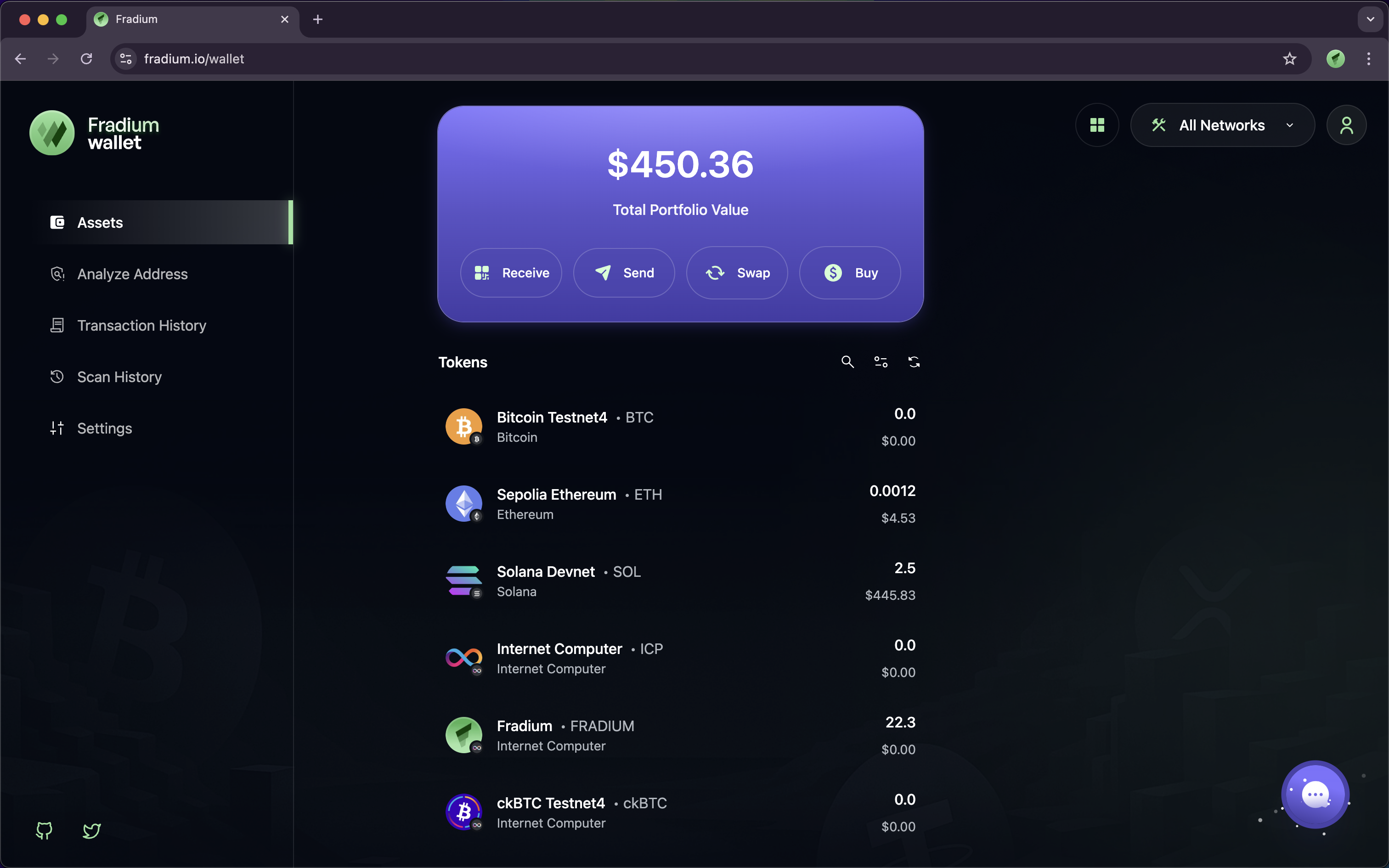
If you already on Asset page, you can try to click on Send button in your portofolio page.
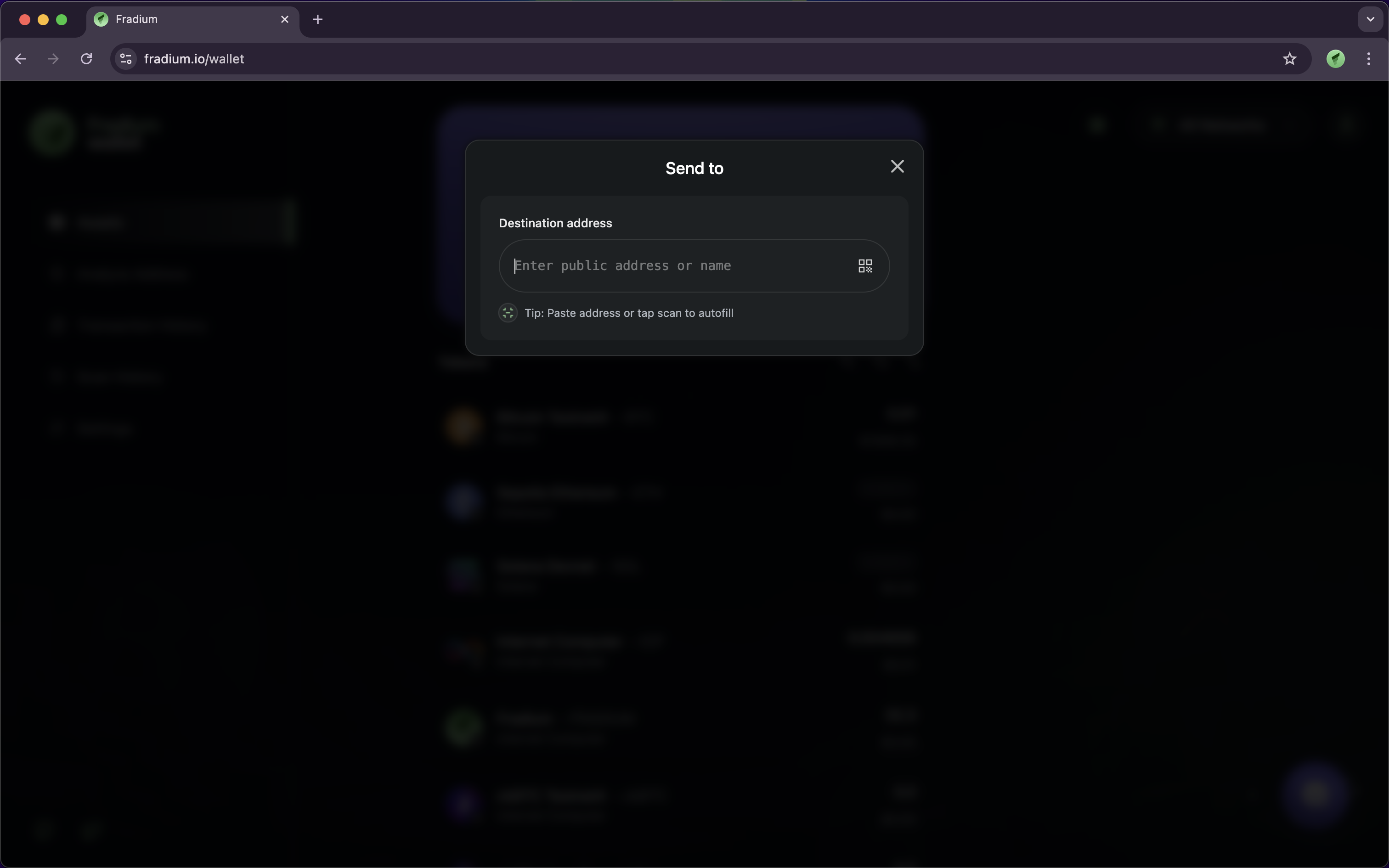
Your screen will also looks like this if you're already click on Send button, this will require you to fill out the public address as your address destination of wallet principal (BTC, ETH, SOL, ICP, etc.).
{% hint style="info" %}
Please check this [**page**](https://fradium.gitbook.io/docs/using-fradium/fradium-wallets/tutorial/receive) for knowing addresses list of coins.
{% endhint %}
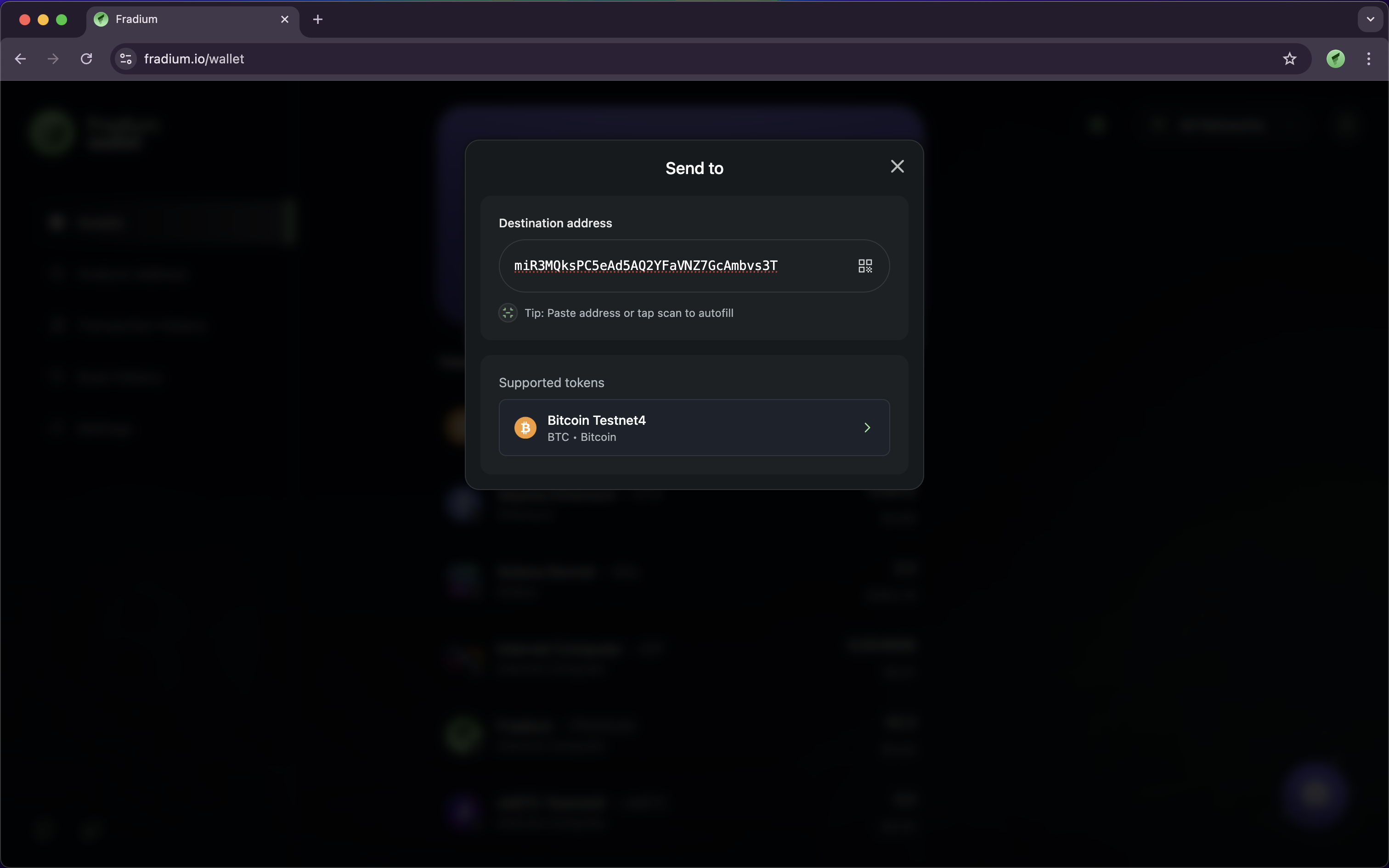
Try entering any address of any type to which you want to transfer a certain amount of coins, this will automatically detect your type of coin.
Below the **Supported Tokens** section, you’ll see the type of token associated with the address you entered.\
After that, click on it to proceed to the next step.
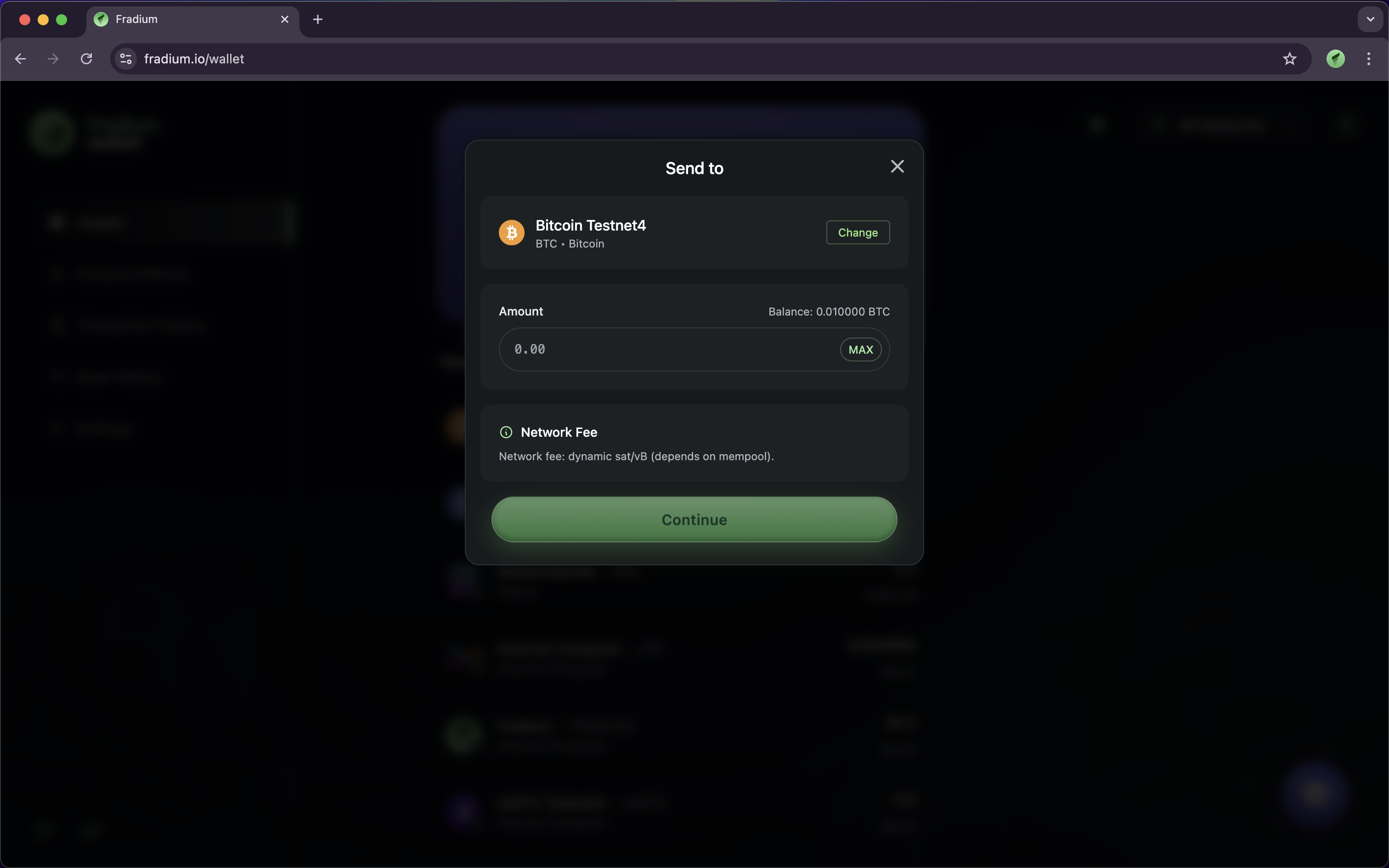
At this point, you can enter the amount you want to send to the destination wallet address, or click the **Change** button to switch the token type.
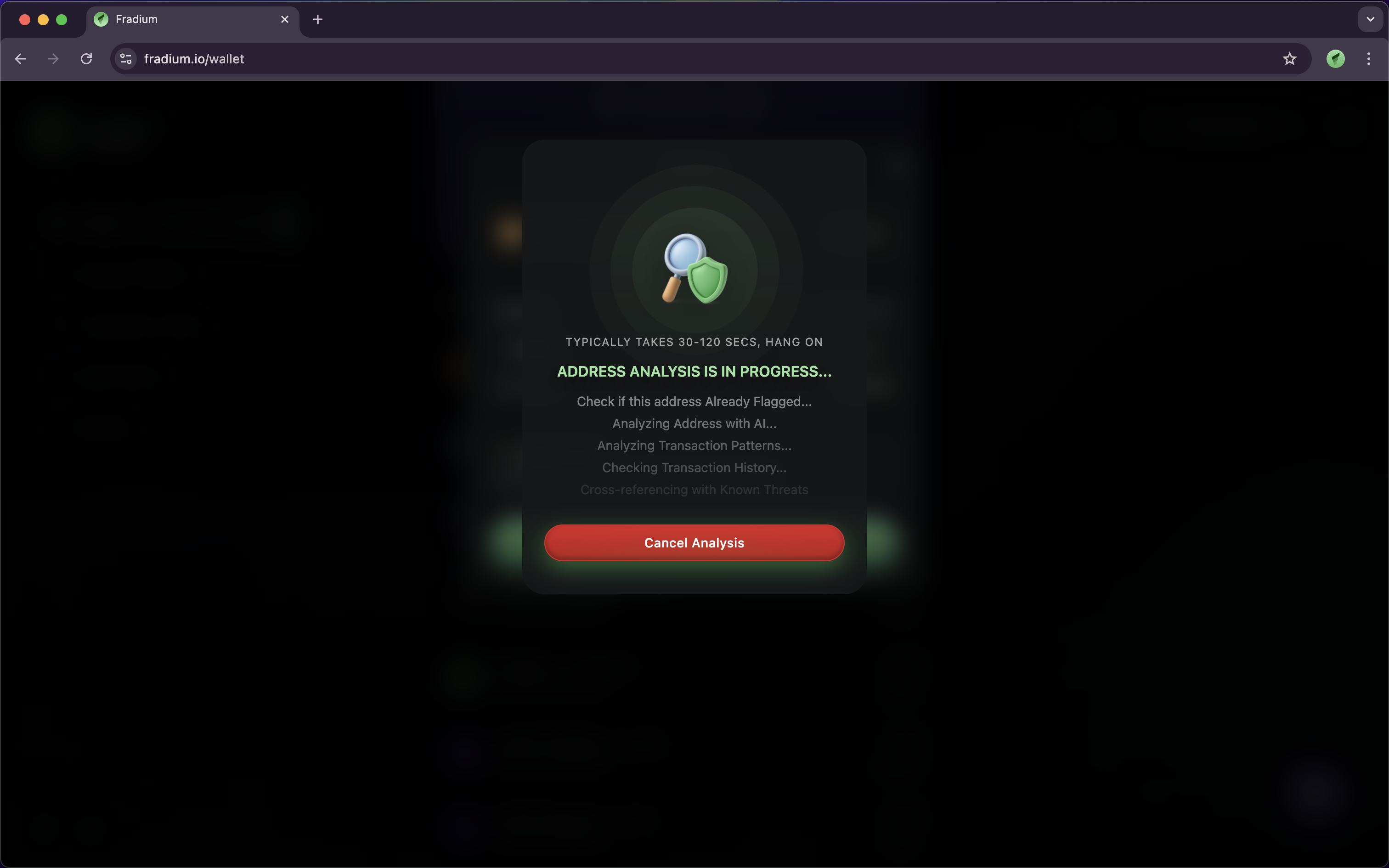
After you enter the amount you want to sent and click **Continue** button on the bottom of Modal Dialog, application will directly move to Analyze Address of your token address.
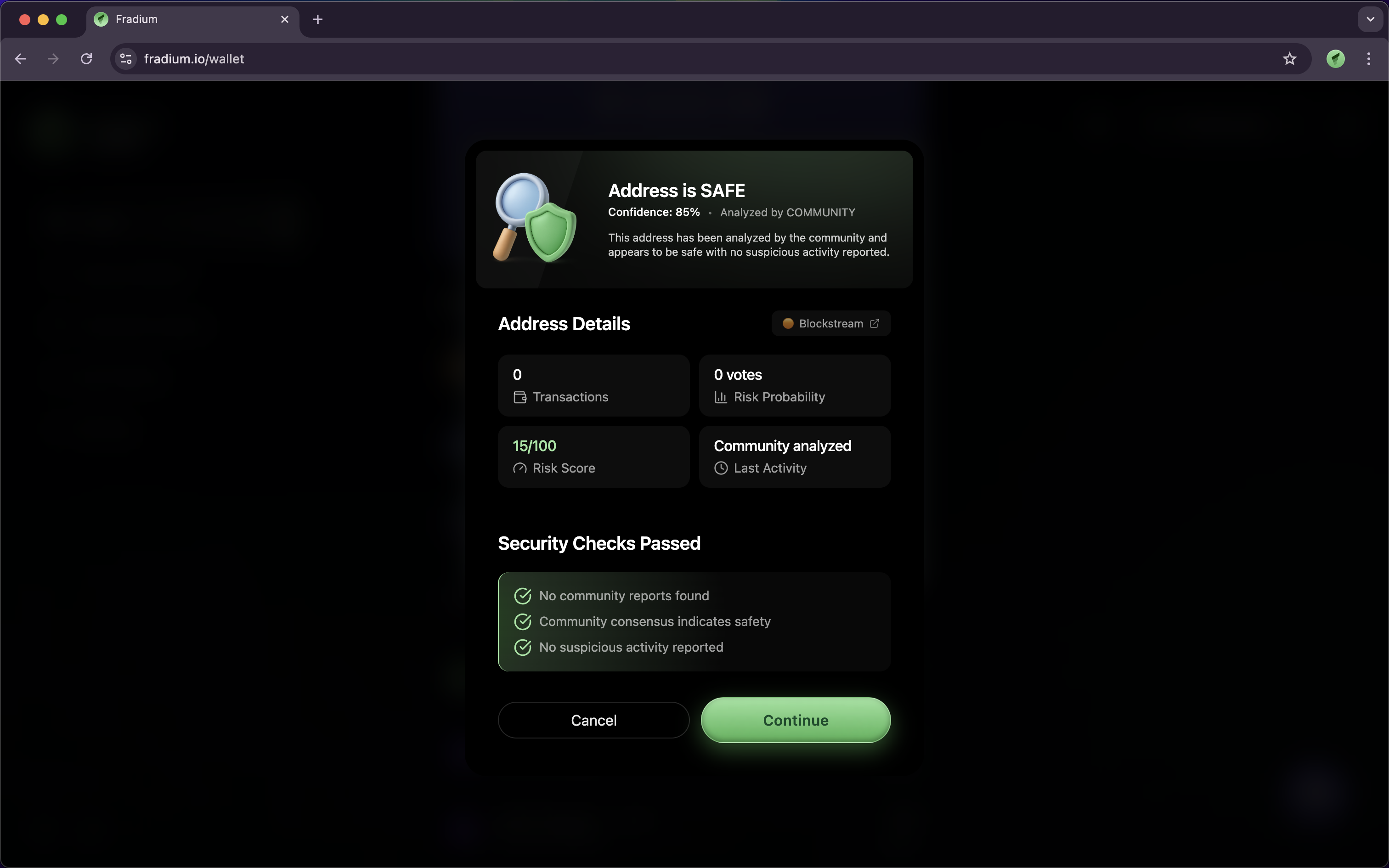
Then, it will display a summary of the destination address to determine whether the address is **SAFE** or **UNSAFE**. First, it checks the community reports before the AI Address Analysis is performed. After that, you will be given the option to either **cancel** or **continue** sending the amount to the destination wallet address.
If you choose **cancel** button, you'll directly move to **Input Amount Dialog** page.
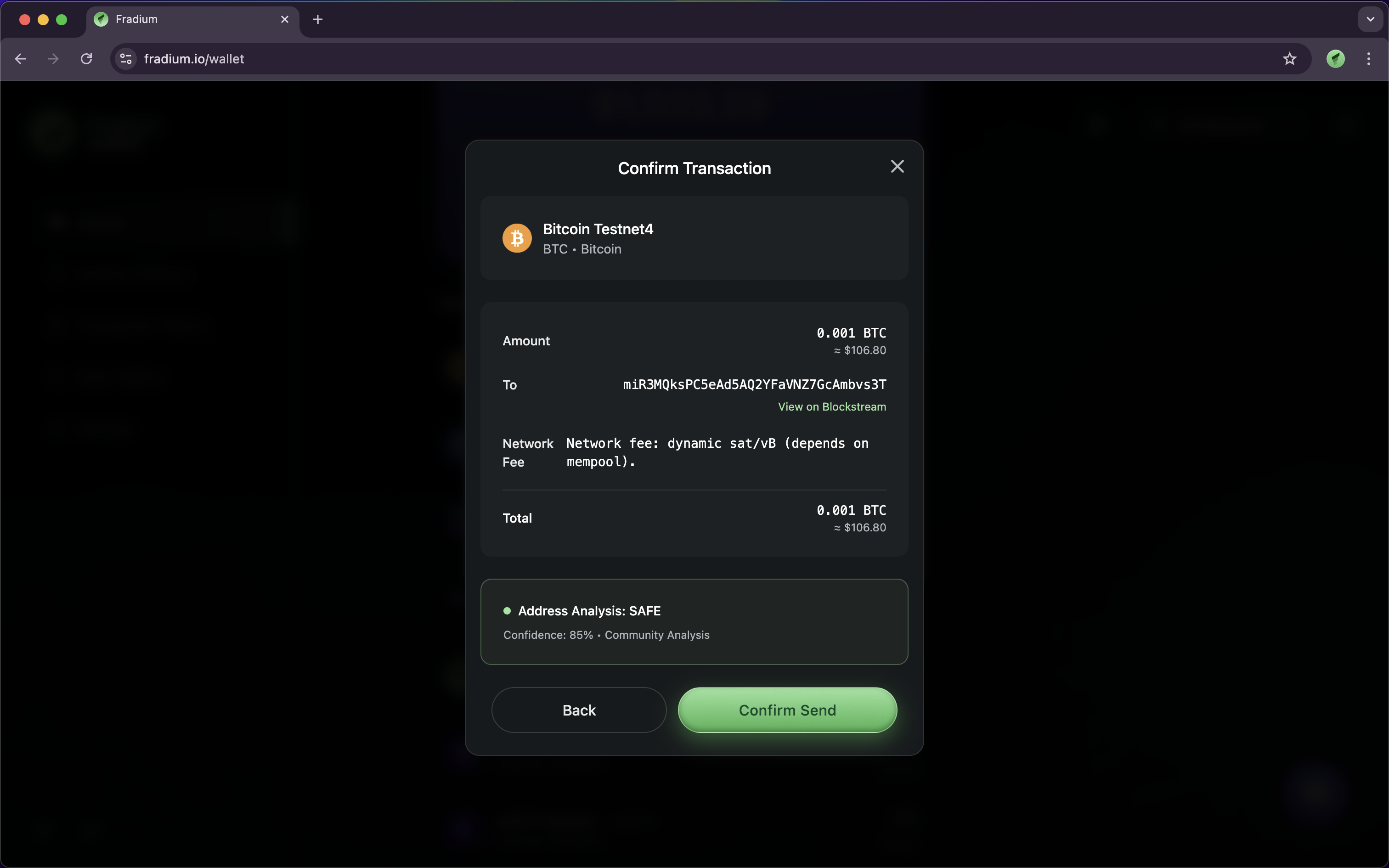
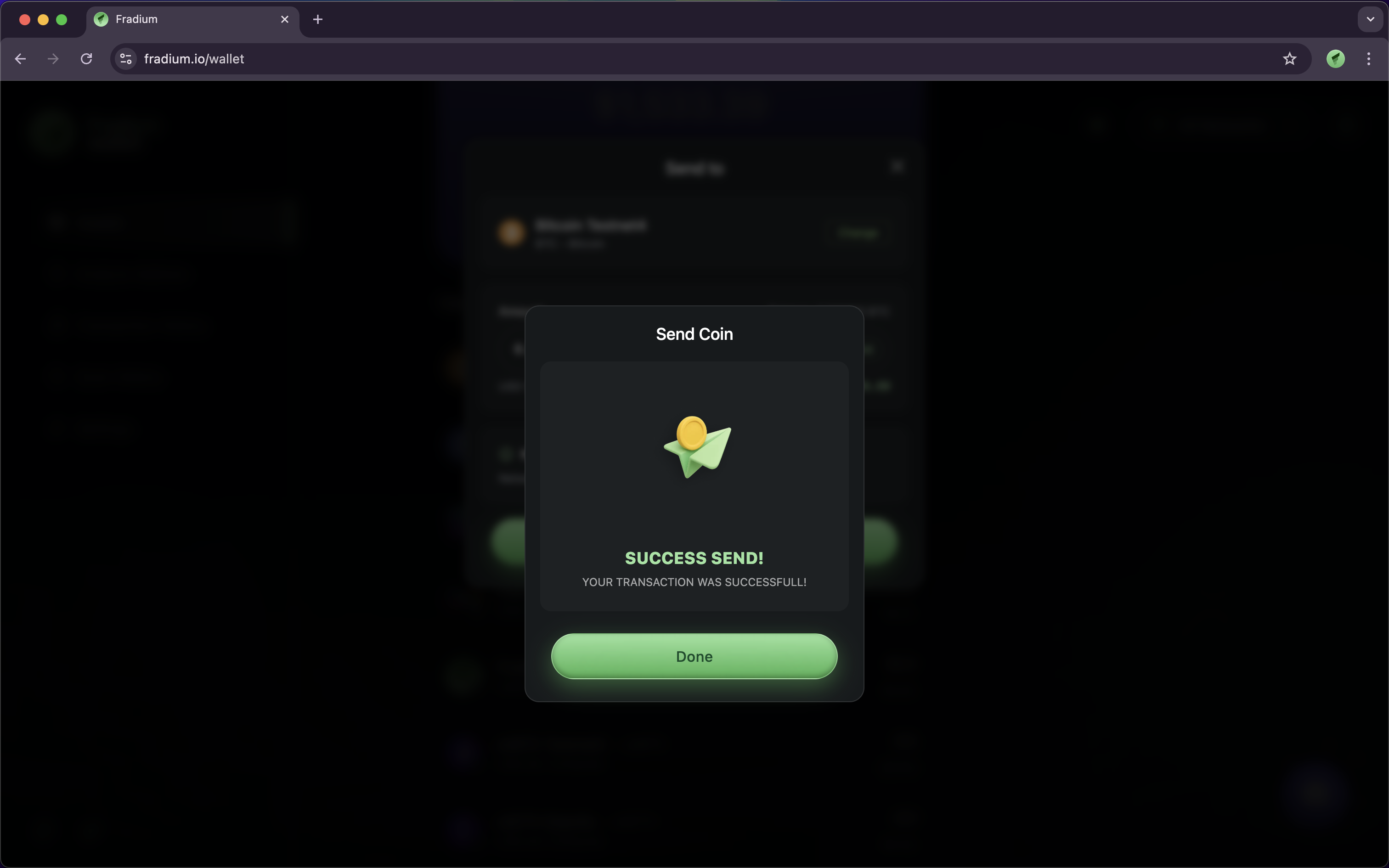
If you choose continue button, you'll directly move to the next step that show you the detail of transaction that will begin, and if you click on confirm send button, you'll see the success modal dialog shows up on the screen.
If you choose the **Continue** button, you will be taken to the next step, which shows the details of the transaction that is about to begin. Once you click the **Confirm Send** button, a success modal dialog will appear on the screen.