# Create Account
### Getting Started
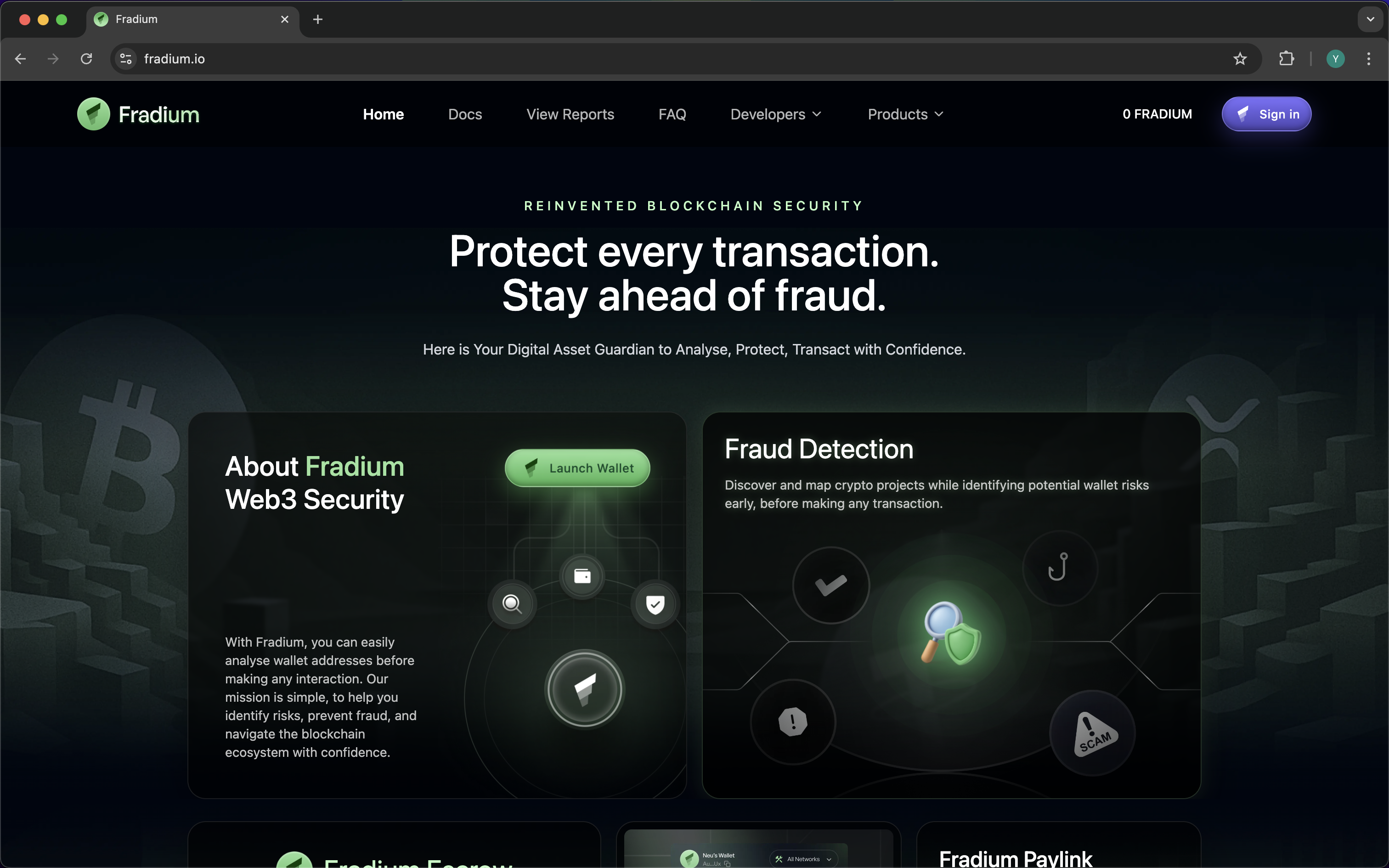
For knowing our application, you can directly click on this [page](https://fradium.io) to access our application and start to create your wallet.
This is the first screen you'll see on your computer or browser.
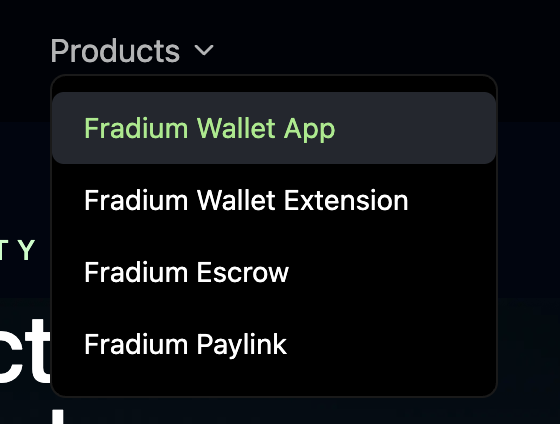
If you are already on the page, go to the top navigation bar and hover your cursor over the **Products** button. A dropdown menu will appear and then select **Fradium Wallet App** from the list, as shown in the picture below.
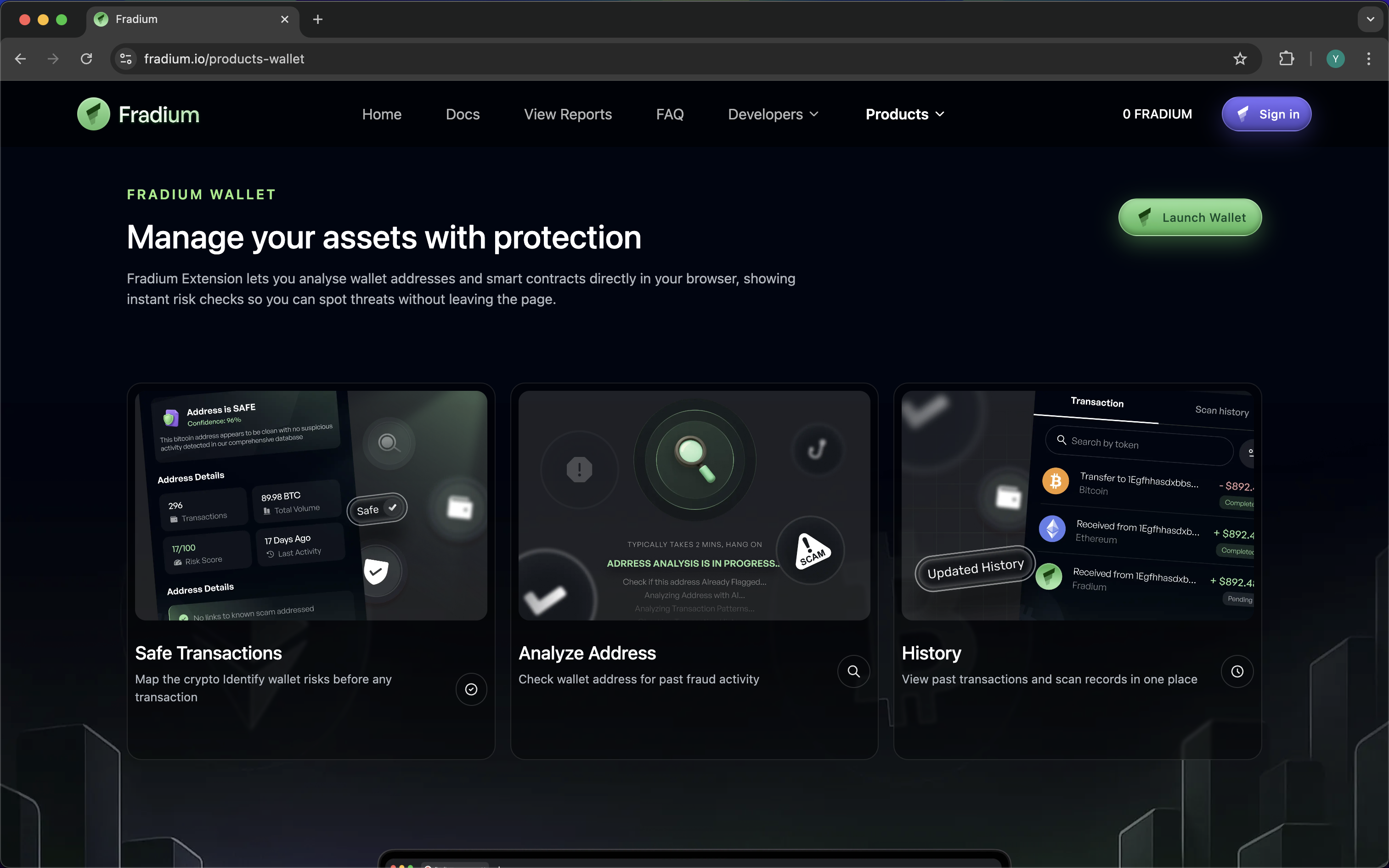
After you click **Fradium Wallet App** dropdown button, your browser will move to **Landing Page of Fradium Wallet** which has a display like the one below.
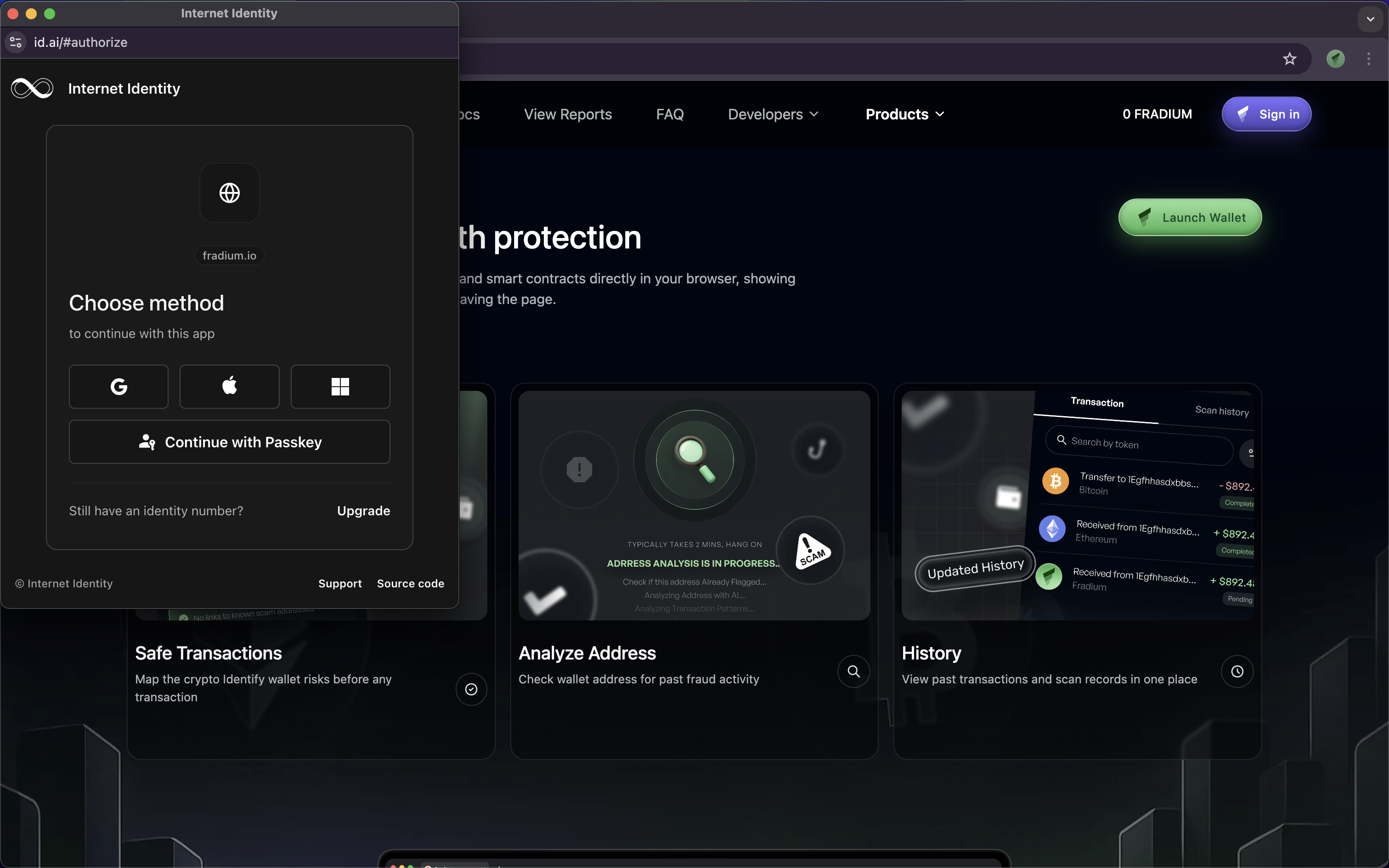
This screen shows you the features of Fradium Wallet and gives you a brief overview of how it works. You'll see a green **Launch Wallet** button at the top right of the screen, and try click on it then your page will show a popup like this image below.
On the screen above, you’ll see the **Internet Identity** interface with several options to continue:
* **Google**
* **Apple**
* **Microsoft**
* **Continue with Passkey**
Each of these methods will create or link your Internet Identity to Fradium Wallet in a secure and privacy-preserving way.
#### **General Sign-Up Flow (for Google, Apple, and Microsoft)**
The overall process is the same for all three providers:
1. Click on your preferred sign-in option (**Google**, **Apple**, or **Microsoft**).
2. A new window will appear asking you to choose or log in to your account.
3. Review and accept the permissions requested (such as your name and email).
4. Complete any additional verification (for example, Face ID, Touch ID, or 2-Factor Authentication).
5. Once authentication is complete, you’ll be redirected back to **Fradium Wallet**, where your **Internet Identity** will be automatically created and linked to your account.
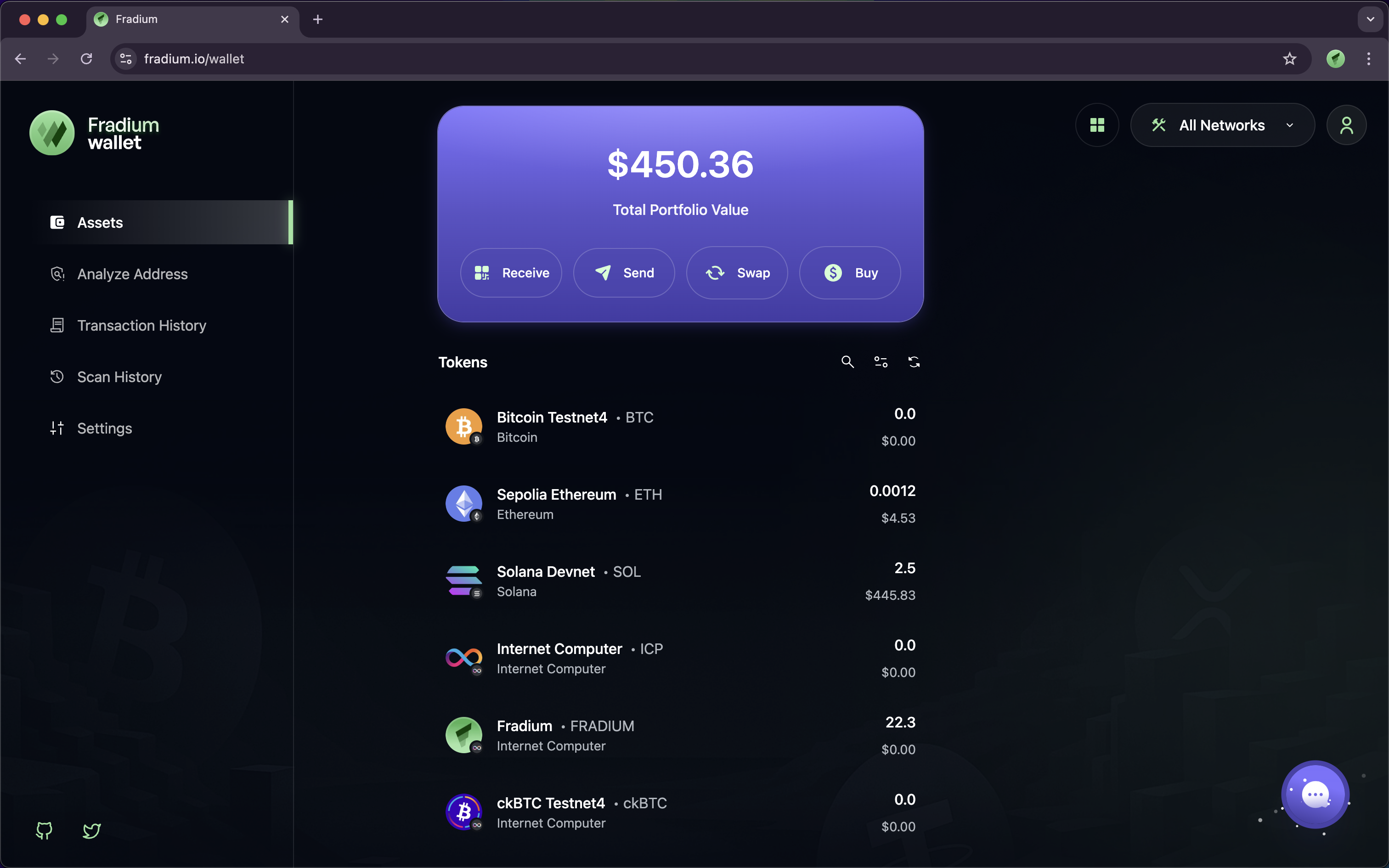
After successfully creating your Internet Identity, the pop-up window will close automatically, and the browser will redirect you to the **Wallet** page like the image below.
On this page, you’ll see your portfolio along with several key features of the wallet such as:
* **Assets**
* **Analyze Address**
* **Transaction History**
* **Scan History**
* **Manage Network**
* **Settings**
* **Receive**
* **Send**
* **Swap**
* **Buy**
Congratulation on your first account on Fradium with Internet Identity, you next chapter will show you how Analyze Address work on Fradium.